Accessibility with Firia Labs
At Firia Labs, our mission is to inspire and engage all students in learning computer science. Our unique instruction utilizes our proprietary software CodeSpace, which is designed to be classroom friendly. In order to accomplish this goal, CodeSpace has an inclusive design and strives to be accessible to all students. This document details web-based methods to increase accessibility across CodeSpace and the entire Firia Labs curriculum.
Text / Screen Contrast:

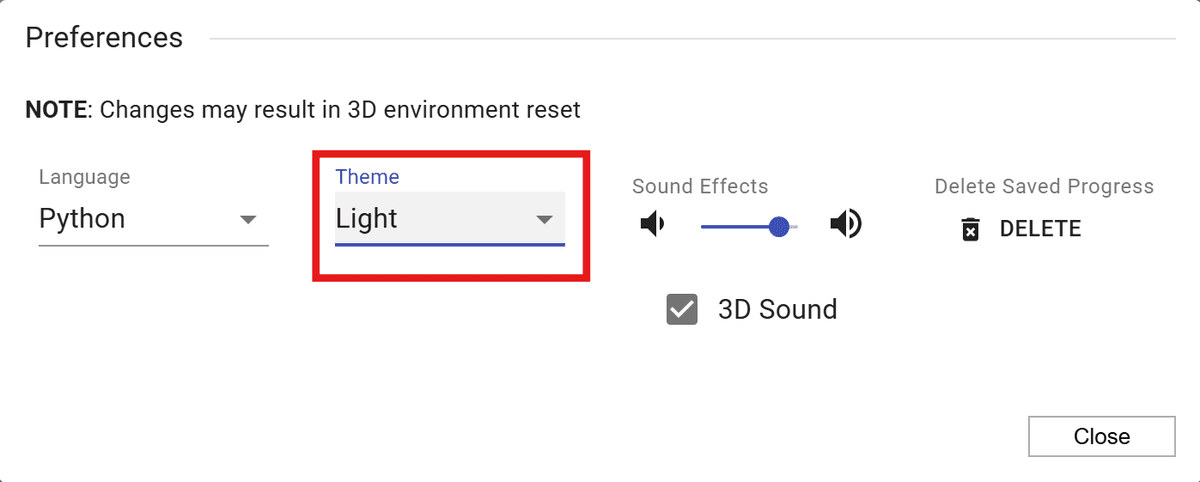
The default theme pin CodeSpace is “Dark,” with a black background and white text. You can increase the visibility and contrast by changing the theme to “Light.” Click on the preferences icon:
Change the theme to Light. The theme will keep the setting until it is changed, without the need to change it each time CodeSpace is logged into.
Text to Speech (Chrome)

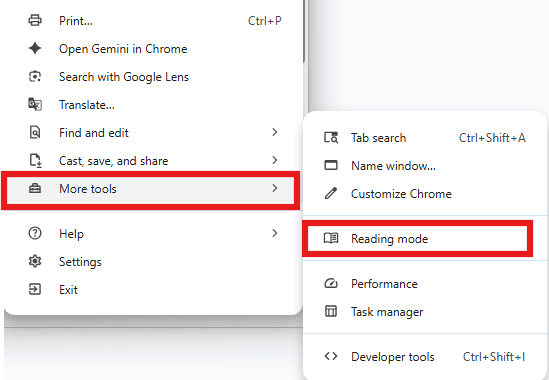
When using the Chrome browser, there are a couple of ways to have the text in CodeSpace read aloud. Click on the three dots in the upper right corner of the Chrome browser. In the drop-down menu, go to “More Tools” and then “Reading Mode.”
You can also access Reading Mode in CodeSpace by doing a right-click (with mouse or trackpad) to open the dialog window. Select the “Open in reading mode” menu item.
The window will split into two sides, with CodeSpace and Reading Mode. You can set many options, including voice selection, speed, font, and text theme.

Highlight the text to convert to speech. You can select:
- Instructions in the Objective Panel
- Hints
- Code in the Text Editor
- (Reading Mode will not work in CodeTrek)
Close the Reading Mode window when finished, or pin it for continuous access.
Text to Speech (Windows 11)
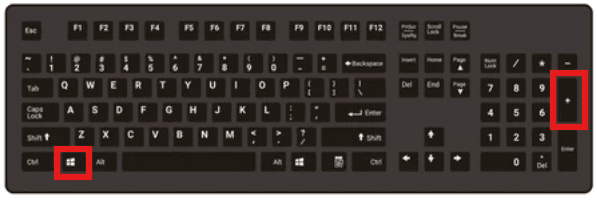
Activate the Windows screen magnifier by pressing the Window key and +.
This dialog box will show up. Click on the “Read from here” icon.

Then click at the beginning of the text to read aloud. It can read anything in the window, including menu items.
Basic Settings: Click the settings button to adjust reading speed and voice.

Advanced Settings and Shortcut Keys:
- Reading Shortcut: CTRL + Alt
- Start, pause, and resume reading: Reading Shortcut + Enter
- Stop Reading: Any Key
- Read from mouse pointer: Reading shortcut + Left mouse click
- Read next sentence: Reading shortcut + K
Screen Magnification
Chrome, Windows and Mac OS offer several options for screen magnification.
- Chrome
Change the size of the font in the window using the zoom feature. Use the shortcut keys CTRL+Plus(+) to zoom in, and CTRL+Minus(-) to zoom out.
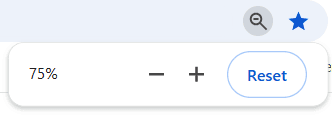
Everything in the window, including icons, menu options and text, will be magnified.
- Windows 11
Magnify the screen using the screen magnifier. Activate the Windows screen magnifier by pressing the Windows Logo key+Plus(+).

- Mac OS
For a Mac OS system, use Command+Plus(+) or Command+Minus(-). A magnifier icon will appear in the search bar, as another way to zoom in and out.
Language Translation
Chrome offers a quick and easy way to translate from English to several languages. Click on the three dots in the upper right corner of the Chrome browser. In the drop-down menu, go to “Translate…”
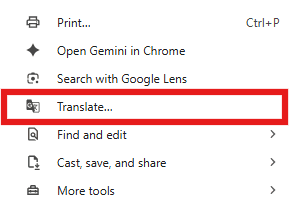
A “Translate” icon will appear in the search bar. You can select the language from the settings.
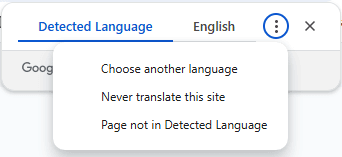
You can go back and forth from English to the selected language. All text in the window, including menu options and program code, will be translated. It can be used in Hints and CodeTrek.
You can also use Reader Mode in the selected language (see page 3). Use the settings to select the correct voice for a language other than English.
Note: Change back to English before closing a window or going to the next objective.
Image Descriptions
Most images in CodeSpace are decorative, adding an interesting visual to the topic of the objective. Occasionally an animated GIF or chart is embedded in the instructions or Hints.
Use a Chrome Extension to generate image descriptions. Click on the extensions icon, and “Manage Extensions.” Then go to the Chrome Web Store (opens in a new tab). Search for “Image Describer” and add it to Chrome. You can pin it to the toolbar for easy access. To hear the description, make sure the automatic playback is not muted (in Options).

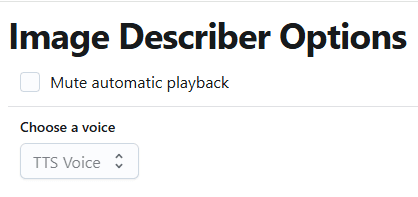
When an image is embedded in CodeSpace, right-click on the image.
- Go to Image Describer
- Select “Describe Image”
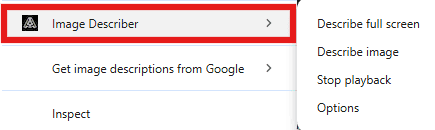
A split screen will show a description of the image as it is being read in the voice selected.
Note: Animated GIFs and charts may not be described.
YouTube Videos
Videos are not included in CodeSpace, but they are supplemental materials.
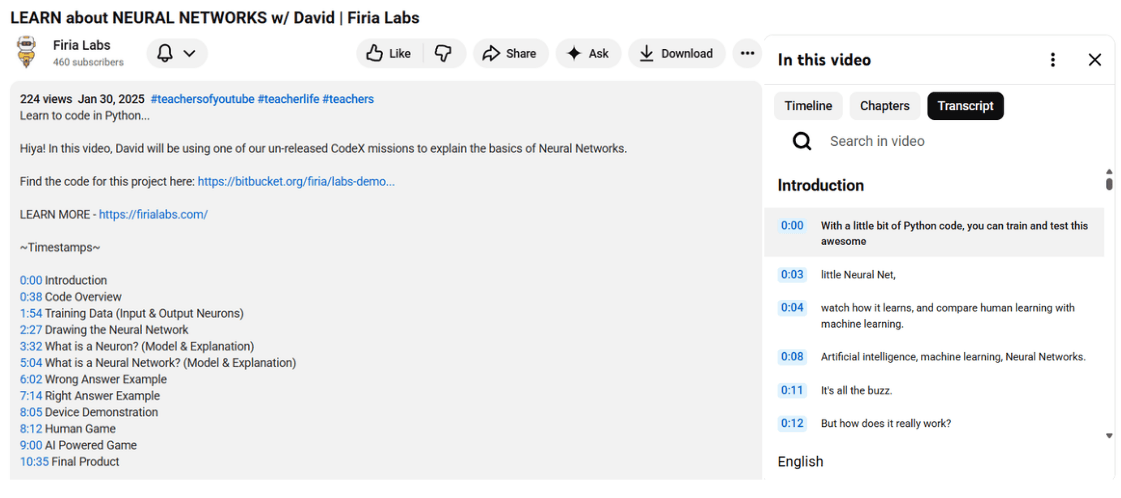
- YouTube videos are closed captioned.
- Videos are segmented into parts, and each part is labeled.
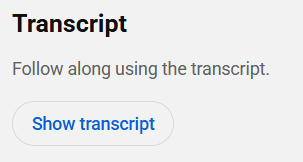
- You can display a transcript of the video using a feature in YouTube.
Additional Accessibility Resources
Chrome Accessibility Features
Chrome has a variety of accessibility features that can be turned on. Click on the three dots in the upper right corner of the Chrome browser. In the drop-down menu, go to “Settings.” On the left hand side, go to Accessibility.
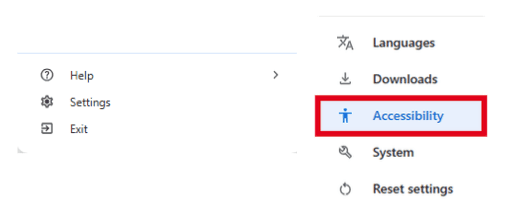
Look at the options and decide if you want to turn on any of them.
Mission Pack Resources
Reading and comprehending a lot of text in CodeSpace can be difficult for some students. Some of the mission packs have a slide deck, workbook, and assignment for guided notes available for students to use. The slide decks and workbooks take the information in the mission objectives and chunk it into smaller reading passages. Also, additional examples and images are included.